Listening: learn or teach a language from the shows you already watch
A Listening session hears whatever is playing on your Mac — a series, a YouTube video, a podcast, a lecture — and turns it into lessons one sentence at a time. When a sentence ends, the player pauses and a card explains what was just said. You press Continue, and the story goes on.
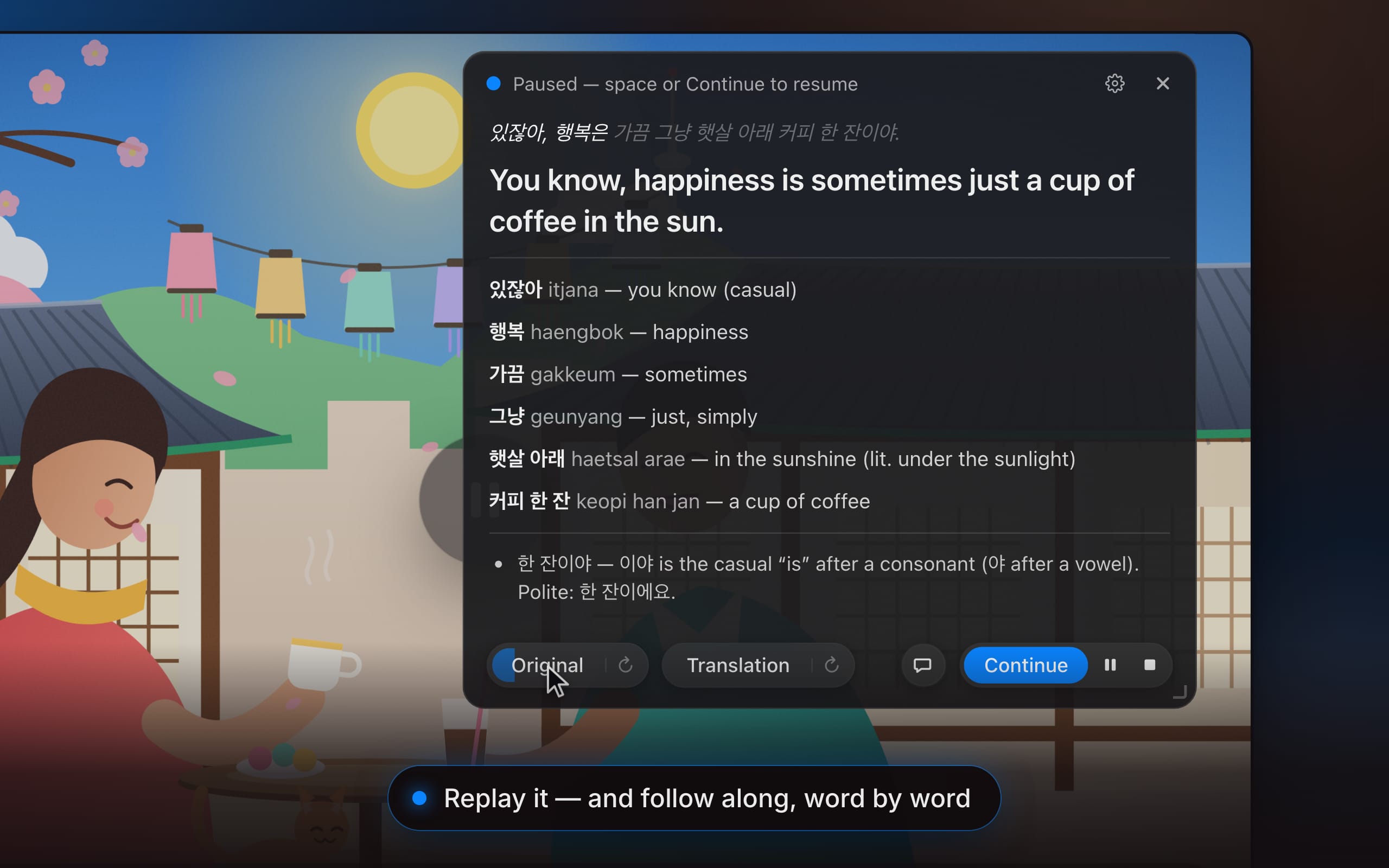
Animated demo of a Listening session. A Korean drama plays in a video player while the app’s overlay transcribes a line of dialogue: “있잖아, 행복은 가끔 그냥 햇살 아래 커피 한 잔이야.” At the end of the sentence the app pauses the video and shows a card with the translation — “You know, happiness is sometimes just a cup of coffee in the sun.” — a vocabulary list with romanized readings (있잖아, itjana, you know; 행복, haengbok, happiness; 가끔, gakkeum, sometimes; 그냥, geunyang, just; 햇살 아래, haetsal arae, in the sunshine; 커피 한 잔, keopi han jan, a cup of coffee) and a grammar note on the casual ending 이야. The original is replayed with a word-by-word highlight, the question “Why 행복은 and not 행복이?” is answered in a chat panel (은/는 marks the topic), and pressing Continue resumes the video.
Animated demo of a Listening session. A Korean drama plays in a video player while the app’s overlay transcribes a line of dialogue: “있잖아, 행복은 가끔 그냥 햇살 아래 커피 한 잔이야.” At the end of the sentence the app pauses the video and shows a card with the translation — “You know, happiness is sometimes just a cup of coffee in the sun.” — a vocabulary list with romanized readings (있잖아, itjana, you know; 행복, haengbok, happiness; 가끔, gakkeum, sometimes; 그냥, geunyang, just; 햇살 아래, haetsal arae, in the sunshine; 커피 한 잔, keopi han jan, a cup of coffee) and a grammar note on the casual ending 이야. The original is replayed with a word-by-word highlight, the question “Why 행복은 and not 행복이?” is answered in a chat panel (은/는 marks the topic), and pressing Continue resumes the video.
Start a session
- Play something in the language you are learning, in any app.
- In the overlay, select Listening and press Start Listening. (The menu-bar icon has Start Listening too; it brings the overlay up first, so a session never runs behind a hidden card.)
- Watch. The status line tells you what the app is doing: “Listening…”, “Hearing a sentence…”, then “Sentence complete — translating…”.
First time? Getting started covers sign-in and the one permission Listening needs. Teaching with it? The same card works on a projector — see For teachers.
What happens at the end of a sentence
RainbowSay listens for the point where a sentence is complete — by meaning, not just by a gap in the sound. Then:
- The player pauses. The app presses Play/Pause for you, so you are never chasing the dialogue.
- The card appears: the original sentence as it was spoken, the translation, the vocabulary with readings, and a grammar note.
- The translation is spoken aloud, and the text lights up word by word as it plays.
Now it’s your time. Hover over words, replay the Original and the Translation side by side, or ask a question in the chat. The deep-dives below cover each of these.
Continue
Press Continue — or the Space bar — and the player resumes. The next sentence gets the same treatment. The status line reminds you: “Paused — space or Continue to resume”.
The spacebar has a second job. While a sentence is still being spoken, Space means translate now: the player pauses right there and you get a card for what has been said so far. It is handy when a speaker rambles or when you want to catch a phrase before it’s gone.
Music, noise and silence
- Music, singing, sound effects and background noise are not translated. When a stretch of audio has no clear speech, the app discards it and the video resumes by itself.
- After about 30 seconds of silence the session goes into standby — “Paused — waiting for audio” — and stops sending audio, so waiting costs nothing. It wakes up by itself when sound returns, without clipping the first words. Space wakes it too.
- Ads or a musical number coming up? Use the suspend button (⏸) to look away until you unsuspend. See Skip ads, music and small talk.
End the session
Press the stop button (⏹) next to Continue, or choose Stop Listening from the menu-bar icon. Every sentence you completed is already saved — text, both audio clips and any chat — and waiting on the Dashboard’s Sessions page. See Your study history.