Let all your senses light up

Learn Teach Research a language
from the
shows
you already love.

RainbowSay listens along with your favorite series, videos and podcasts. It pauses at the end of each sentence and shows you what was just said — translation, vocabulary, grammar. Real voices, real pace, one sentence at a time.

Download for macOS macOS 14.2+ · Apple SiliconSee how it works
  • Free to start · no credit card
  • Listens to audio only — never records your screen

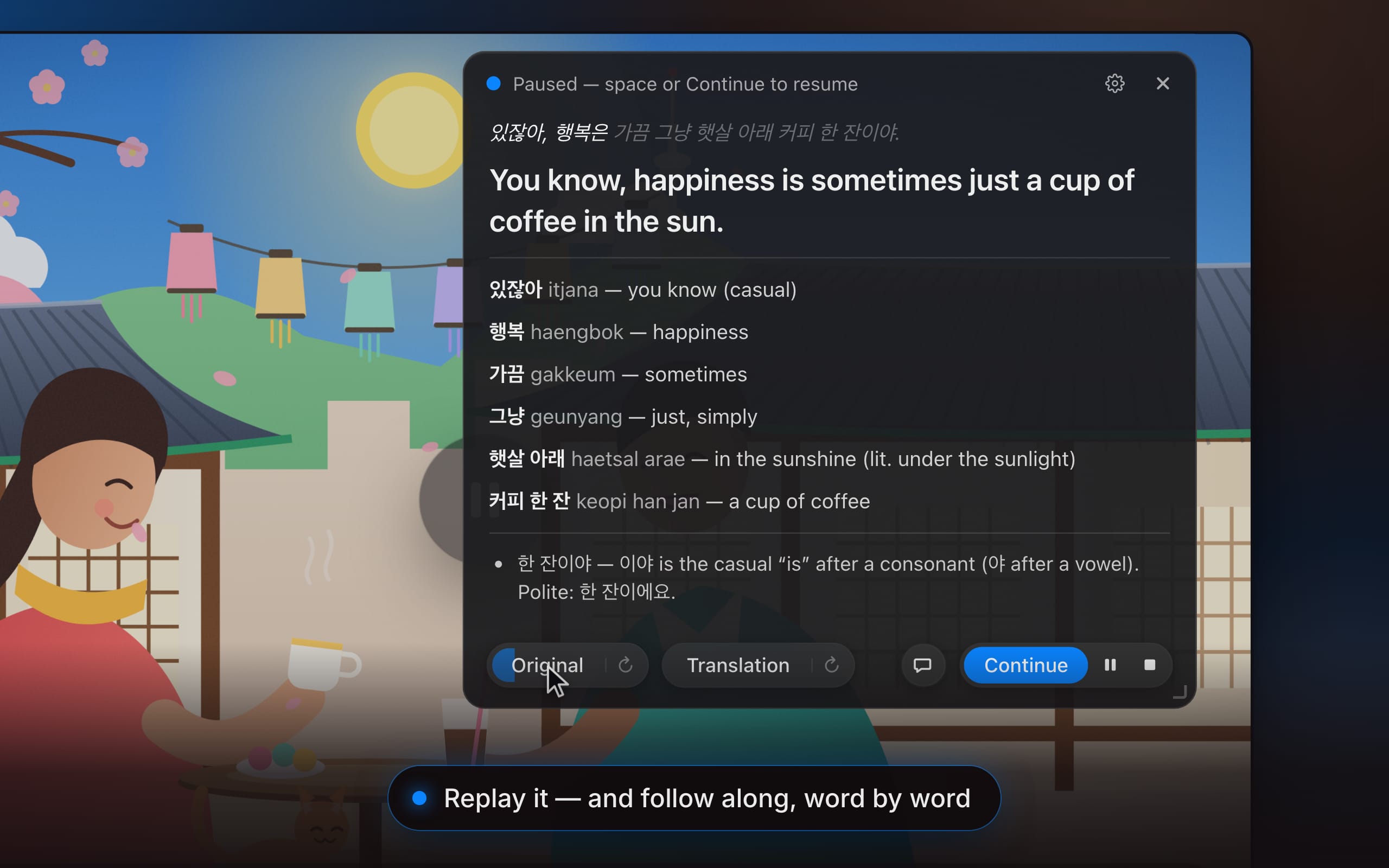
Animated demo of a Listening session. A Korean drama plays in a video player while the app’s overlay transcribes a line of dialogue: “있잖아, 행복은 가끔 그냥 햇살 아래 커피 한 잔이야.” At the end of the sentence the app pauses the video and shows a card with the translation — “You know, happiness is sometimes just a cup of coffee in the sun.” — a vocabulary list with romanized readings (있잖아, itjana, you know; 행복, haengbok, happiness; 가끔, gakkeum, sometimes; 그냥, geunyang, just; 햇살 아래, haetsal arae, in the sunshine; 커피 한 잔, keopi han jan, a cup of coffee) and a grammar note on the casual ending 이야. The original is replayed with a word-by-word highlight, the question “Why 행복은 and not 행복이?” is answered in a chat panel (은/는 marks the topic), and pressing Continue resumes the video.

The app’s real interface, animated: the video plays, the app hears a sentence end, pauses the player and unpacks the sentence.

The idea

The world is filled with beautiful stories. Let them teach you.

Textbook dialogues don’t sound like anyone you know. The people in your favorite drama do. They mumble, joke, interrupt each other and fall in love — at their real pace. That is the language you actually want.

So why not use a large language model to learn or teach a language — literally? RainbowSay lets AI do the research on every sentence, automatically, while native speakers set the rhythm.

  • English (English)
  • Español (Spanish)
  • Português (Portuguese)
  • Français (French)
  • 日本語 (Japanese)
  • Русский (Russian)
  • 中文 (Chinese)
  • Deutsch (German)
  • 한국어 (Korean)
  • हिंदी (Hindi)
  • Bahasa Indonesia (Indonesian)
  • Tiếng Việt (Vietnamese)
  • Italiano (Italian)
  • Goeie dag (“Hello” in Afrikaans)
  • مرحبا (“Hello” in Arabic)
  • Բարև (“Hello” in Armenian)
  • Salam (“Hello” in Azerbaijani)
  • Прывітанне (“Hello” in Belarusian)
  • Zdravo (“Hello” in Bosnian)
  • Здравейте (“Hello” in Bulgarian)
  • Bon dia (“Hello” in Catalan)
  • 你好 (“Hello” in Chinese)
  • Bok (“Hello” in Croatian)
  • Ahoj (“Hello” in Czech)
  • Goddag (“Hello” in Danish)
  • Hallo (“Hello” in Dutch)
  • Hello (“Hello” in English)
  • Tere (“Hello” in Estonian)
  • Moi (“Hello” in Finnish)
  • Bonjour (“Hello” in French)
  • Ola (“Hello” in Galician)
  • Guten Tag (“Hello” in German)
  • Γεια σου (“Hello” in Greek)
  • שלום (“Hello” in Hebrew)
  • नमस्ते (“Hello” in Hindi)
  • Szia (“Hello” in Hungarian)
  • Halló (“Hello” in Icelandic)
  • Halo (“Hello” in Indonesian)
  • Ciao (“Hello” in Italian)
  • こんにちは (“Hello” in Japanese)
  • ನಮಸ್ಕಾರ (“Hello” in Kannada)
  • Сәлем (“Hello” in Kazakh)
  • 안녕하세요 (“Hello” in Korean)
  • Sveiki (“Hello” in Latvian)
  • Labas (“Hello” in Lithuanian)
  • Добар ден (“Hello” in Macedonian)
  • Helo (“Hello” in Malay)
  • Kia ora (“Hello” in Maori)
  • नमस्कार (“Hello” in Marathi)
  • नमस्ते (“Hello” in Nepali)
  • Hei (“Hello” in Norwegian)
  • سلام (“Hello” in Persian)
  • Cześć (“Hello” in Polish)
  • Olá (“Hello” in Portuguese)
  • Salut (“Hello” in Romanian)
  • Привет (“Hello” in Russian)
  • Здраво (“Hello” in Serbian)
  • Dobrý deň (“Hello” in Slovak)
  • Živjo (“Hello” in Slovenian)
  • Hola (“Hello” in Spanish)
  • Habari (“Hello” in Swahili)
  • Hej (“Hello” in Swedish)
  • Kumusta (“Hello” in Tagalog)
  • வணக்கம் (“Hello” in Tamil)
  • สวัสดี (“Hello” in Thai)
  • Merhaba (“Hello” in Turkish)
  • Привіт (“Hello” in Ukrainian)
  • السلام علیکم (“Hello” in Urdu)
  • Xin chào (“Hello” in Vietnamese)
  • Shwmae (“Hello” in Welsh)

Live subtitles into 13 languages“Hello” in all 57 you can listen and speak in

Three ways to practice, teach, create

Let all your senses light up.

Ears, mouth, eyes. Each has its own kind of session — and its own color, in the app and on this page.

Listening · Ears

Learn & teach from the infinite voices of humans, from all walks of life.

Play anything — a series, a vlog, a podcast, a lecture. RainbowSay hears it, pauses the player when a sentence ends, and hands you that sentence, unpacked. Press Continue and the story goes on.

  • It pauses for you. The video stops at the end of each sentence, so you’re never chasing the dialogue.

  • Every sentence, unpacked. Translation, vocabulary with readings, and the grammar that holds it together.

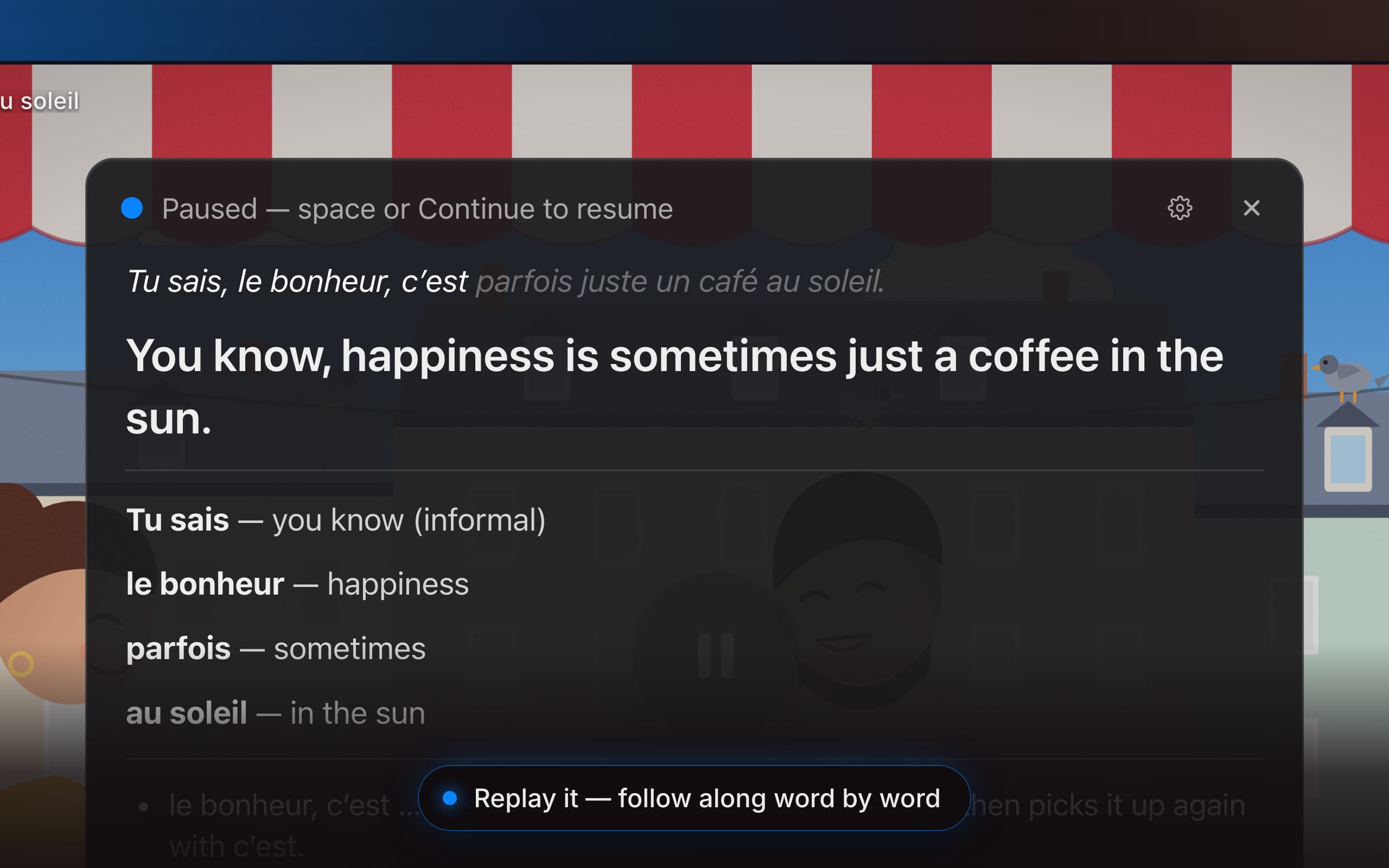
  • Hear it again. Replay the original or the spoken translation with a word-by-word highlight — and set the pace of the voice, from half speed up.

  • Ask anything. Open a chat about the sentence: why this tense, what that idiom really means.

Works with any app that plays sound on your Mac — all of it, or just the one you pick.

Read the Listening guide

Animated demo of the card the app shows when it pauses a video at the end of a sentence. The French sentence “Tu sais, le bonheur, c’est parfois juste un café au soleil.” is translated as “You know, happiness is sometimes just a coffee in the sun.” Vocabulary: Tu sais, you know (informal); le bonheur, happiness; parfois, sometimes; au soleil, in the sun. A grammar note explains that spoken French names the topic first (le bonheur) and picks it up again with c’est. The Original button is pressed and the French sentence is highlighted word by word as it plays; then the Translation button does the same for the English sentence. Pointing at the vocabulary entry “le bonheur” highlights it in the sentence, and “happiness” in the translation.

One sentence, unpacked — the app’s real card, replaying the original and the translation word by word.

Speaking · Mouth

Your voice matters. Speak up.

Understanding is half of a language. The other half is you, out loud. Say a sentence in the language you’re learning, and a patient coach tells you how it came across: what it meant, every word you used, and the one thing worth fixing.

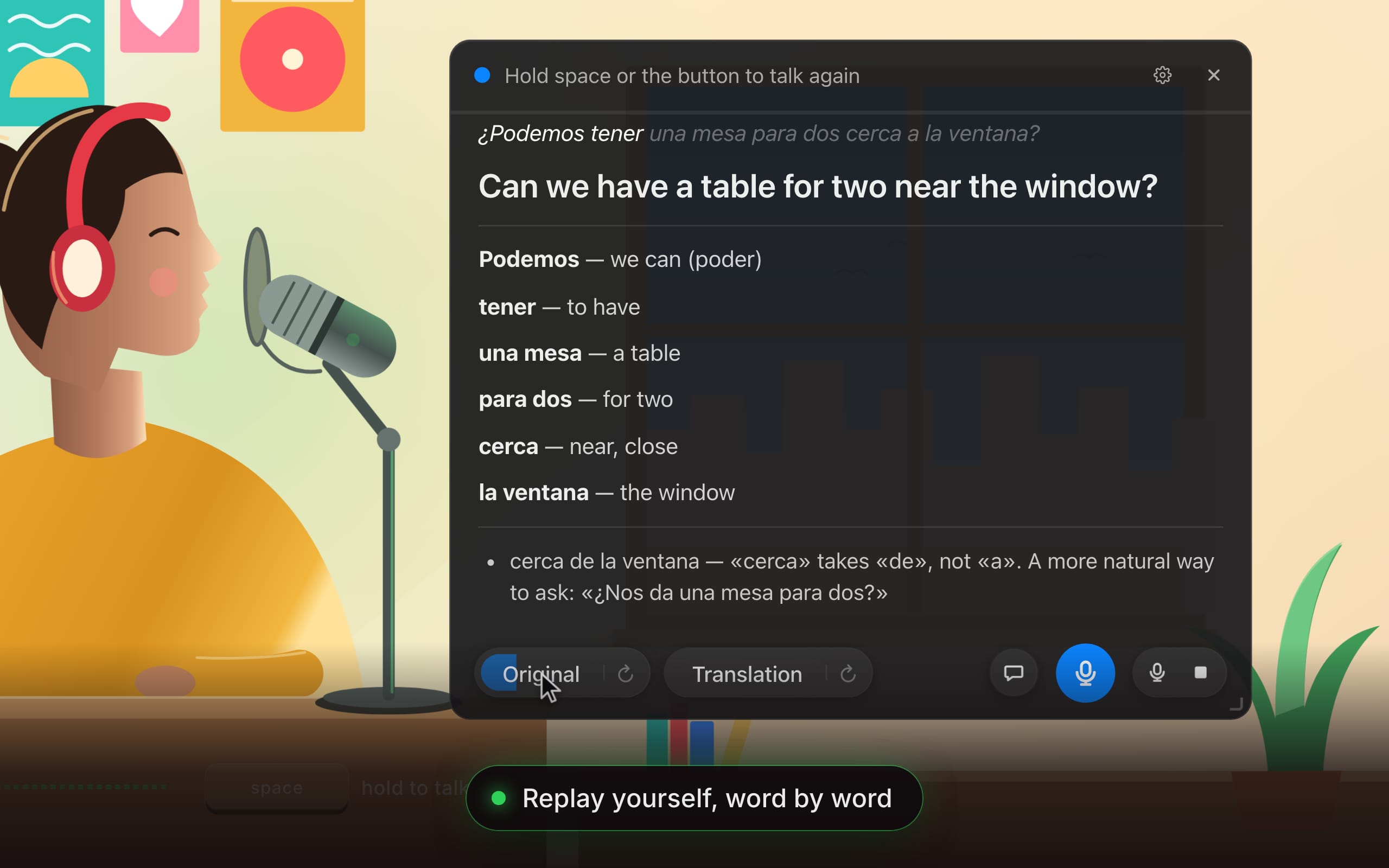
  • See that it came across. Your sentence is written out as it was heard, then translated back into your own language — aloud and on the card. Is that what you meant?

  • One gentle correction. Not a wall of red ink: the single most important fix, with the corrected phrase. Nothing to fix? It names the pattern you used best.

  • Every word you used. Your own sentence, glossed word by word. Replay yourself next to the translation, then ask the chat why — that preposition, that tense, how a native speaker would put it.

  • Push-to-talk or hands-free. Hold space or the mic button while you speak — or let the app hear where each sentence ends. Any microphone, with noise reduction for a laptop mic or a headset.

Read the Speaking guide

Animated demo of a Speaking session in push-to-talk mode: an English speaker practicing Spanish — drawn as a woman at her desk speaking into a microphone, next to the app. While the round microphone button is held, a level meter follows her voice and the learner’s Spanish sentence is written out as it was heard: “¿Podemos tener una mesa para dos cerca a la ventana?” On release the app speaks and shows what that meant in English — “Can we have a table for two near the window?” — so the learner can check it came across. The card then lists every word they used (Podemos, tener, una mesa, para dos, cerca, la ventana) and gives one correction: “cerca de la ventana” — “cerca” takes “de”, not “a” — with a more natural way to ask, “¿Nos da una mesa para dos?” The learner replays their own sentence with a word-by-word highlight, then asks in the chat, “Why «de» and not «a»?”, and gets a short explanation.

Subtitles · Eyes + ears

Read along, live.

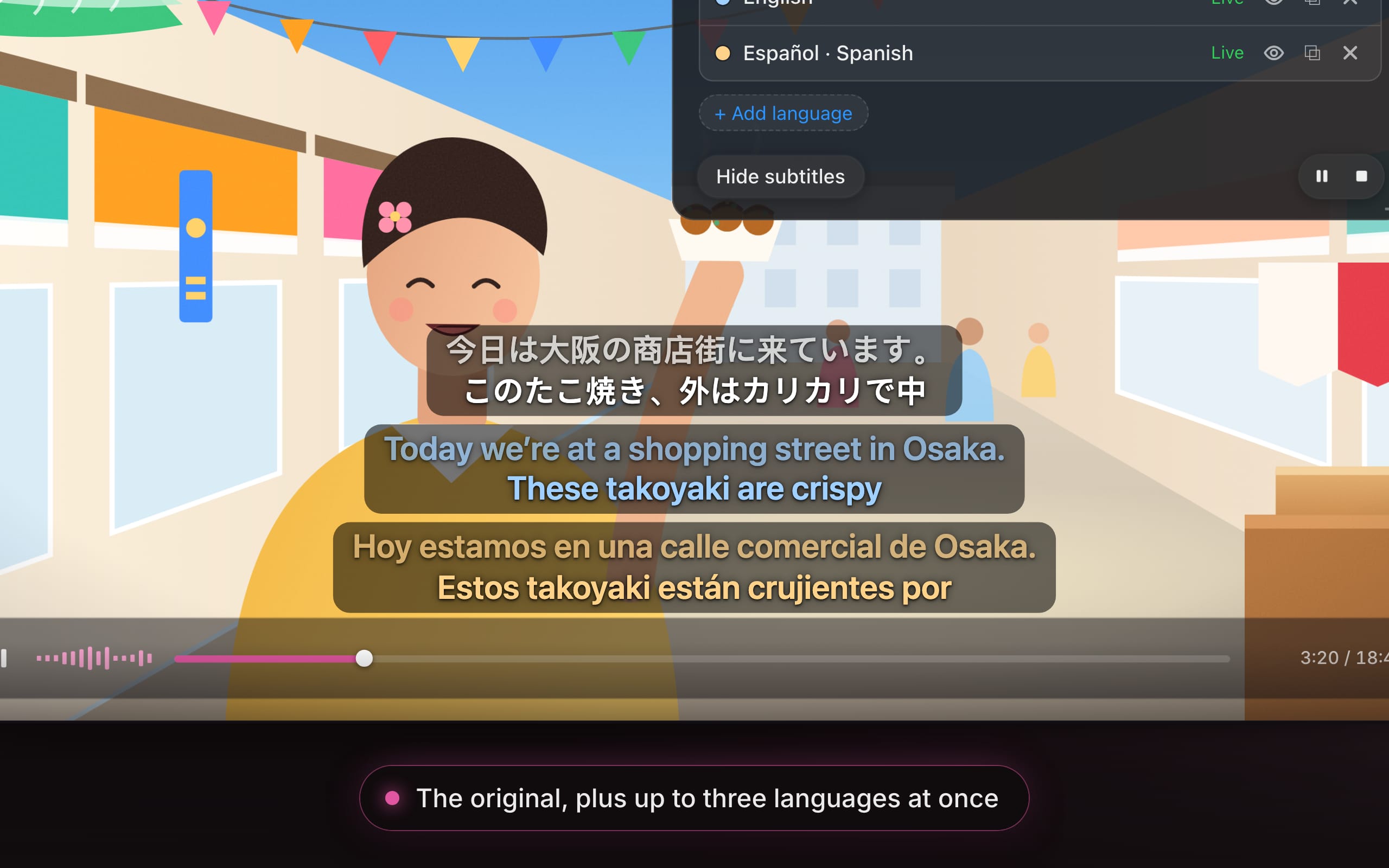
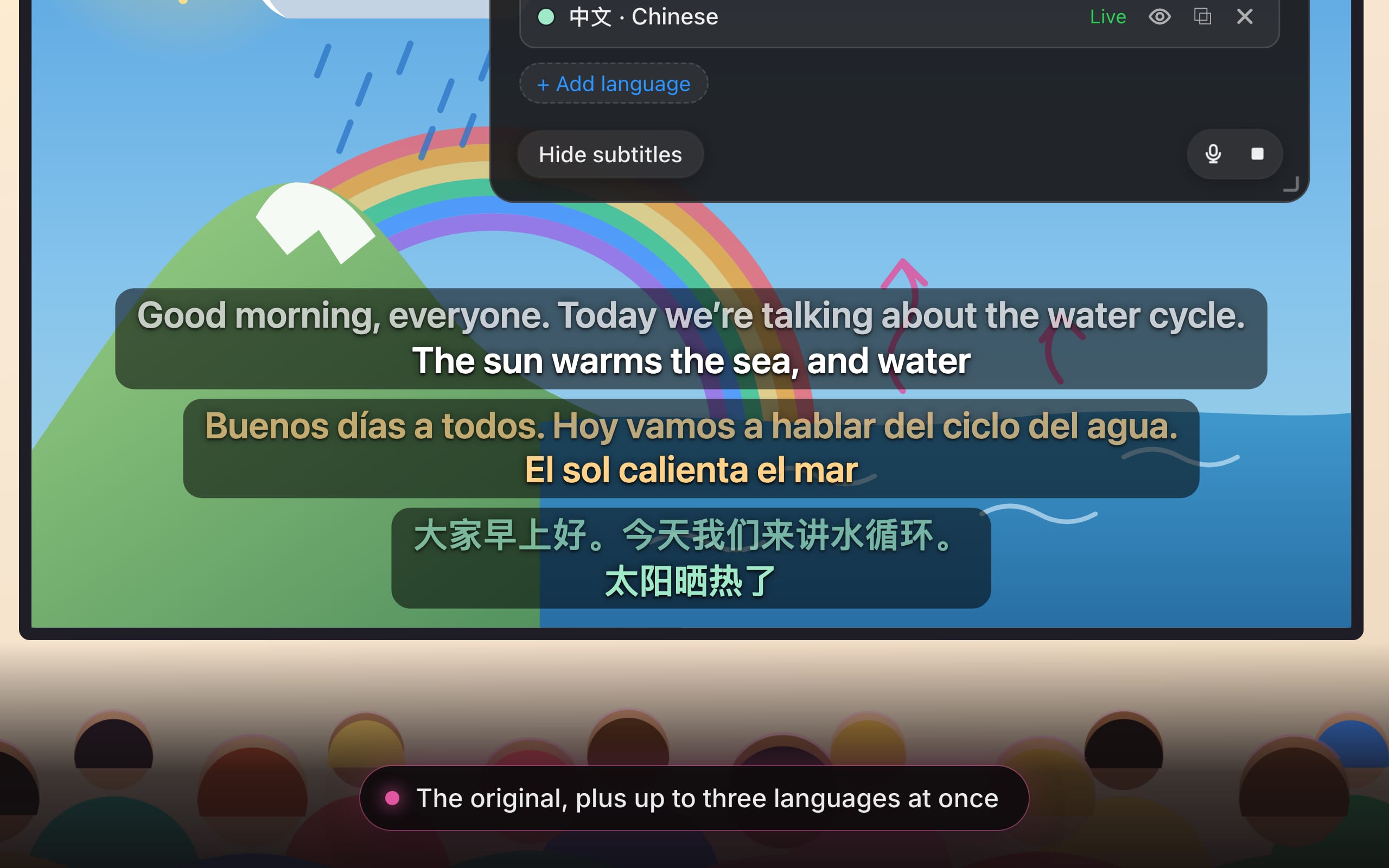
Subtitles floats transparent, always-on-top captions over any video or call: the original words and their translation, streaming as they’re spoken. Nothing pauses.

  • Several languages at once. The original line plus up to three translations, side by side. The spoken language is detected for you.

  • A color for every language. Give each one its own text and background color, size and width.

  • Put them anywhere. Pop a language into its own window and drag it where you like on the screen.

  • Study it later. Sessions are saved as a timeline with audio — replay any line, in any language.

Read the Subtitles guide

Animated demo of a Subtitles session. A Japanese food vlog plays in a video player while a transparent caption window over the lower part of the video streams three lines word by word: the original Japanese, English and Spanish. The speaker says “今日は大阪の商店街に来ています。” (“Today we’re at a shopping street in Osaka.” / “Hoy estamos en una calle comercial de Osaka.”), then “このたこ焼き、外はカリカリで中はとろとろです。” (“These takoyaki are crispy outside and gooey inside.”), then “熱いうちに食べるのが一番ですね。” (“They’re best eaten while they’re still hot.”). Finished sentences move up to a dimmed line as the next one starts. The app’s overlay lists the two translated lanes, English and Spanish, as live; it is then closed with its close button and the subtitles keep running over the video.

Subtitles · from your microphone

Translate for your audience, live.

Subtitles can listen to you instead of your Mac. Choose Microphone as the source, speak the way you always do, and everyone in the room — or on the stream — reads along in their own language.

  • Teach in your own words. Explain, give instructions, tell the story: what you say appears on the projector as you say it, with its translation underneath.

  • One room, several languages. Up to three translations at once, each in its own color — or its own window, on the screen that needs it.

  • Any microphone. Laptop, headset or lapel: pick it from the list, with noise reduction to match the room.

  • Captions for what you create. Record your screen with the captions on it, or export the saved session as an SRT file, timed to your voice.

How to caption your own voice

Animated demo of a Subtitles session that listens to the microphone instead of the computer’s sound. A teacher — drawn at a lectern with a microphone, beside a projected screen with a diagram of the water cycle, her class in front — speaks English. A transparent caption window over the lower part of the projected screen streams three lines word by word: what she says, Spanish and Chinese. She says “Good morning, everyone. Today we’re talking about the water cycle.” (“Buenos días a todos. Hoy vamos a hablar del ciclo del agua.” / “大家早上好。今天我们来讲水循环。”), then “The sun warms the sea, and water rises into the air as vapor.” (“El sol calienta el mar y el agua sube al aire en forma de vapor.”), then “High up, it cools into clouds and falls back down as rain.” (“En lo alto se enfría, forma nubes y vuelve a caer como lluvia.”). Finished sentences move up to a dimmed line as the next one starts, and a waveform on the lectern follows her voice. The app’s overlay reads “Listening to: System default microphone” and lists the two translated lanes, Spanish and Chinese, as live. She then closes the overlay with its close button: the panel disappears, and the subtitles keep running over her slide.

Who it’s for

Learn, teach, create — in real time.

RainbowSay is for people who spend real hours with a language, and would like those hours to be the fun ones.

Students

Turn tonight’s episode into homework you actually want to do.

  • Watch what you would watch anyway. Every sentence becomes a small lesson, with the vocabulary and grammar already looked up.
  • Say it out loud before the oral exam, the trip, the first date — and get one gentle correction each time.
  • A streak and a heatmap that show the hours quietly adding up.

Teachers

Bring the real language into the room.

  • Teach from authentic material — news, interviews, films — and pause on exactly the sentence you want to talk about.
  • Live subtitles in up to three languages at once — of what you play, or of what you say into the microphone — for a classroom that doesn’t share one.
  • Saved sessions become lesson material: the sentences, the vocabulary, the audio.

Creators

Create language content, without the editing marathon.

  • Play your footage and each sentence arrives unpacked — translation, vocabulary with readings, a grammar note. The word-by-word overlay your viewers pause for, ready to screen-record.
  • Live transcription and two-language captions over any video — or over your own voice, from the microphone — in your colors, size and position.
  • Every session is saved: copy the transcript into your script, or export subtitles as SRT, timed as spoken or aligned to the original.

Study history

Everything you learn, kept.

A sentence you understood at 11 pm shouldn’t be gone by morning. Every session is saved on your Mac, ready to replay — and the quiet evenings add up to something you can see.

Show activity for
Illustration of the dashboard’s activity heatmap — one cell per day, one column per week.
  • Every sentence, with its audio

    The original clip, the translation, vocabulary, grammar and any chat you had about it. Replay it with the same word-by-word highlight.

  • Streaks and a year at a glance

    An activity heatmap for each way of practicing, with your current and longest streak, sessions, sentences and time.

  • Subtitle timelines you can study

    Saved Subtitles sessions become a time-marked transcript. Play any line in any language, copy the text or export SRT.

  • Yours to keep — or delete

    History is stored on your Mac, not in our cloud. Remove a sentence, a chat or a whole session whenever you like.

How it works

Three steps. Then just press play.

  1. Download and sign in

    Install RainbowSay on your Mac and sign in with Google. No API keys, no setup — free starter credit is already waiting.

  2. Play anything — or speak

    Start a series, a video, a podcast, a call. Pick Listening or Subtitles from the menu bar, or choose Speaking and use your microphone.

  3. Learn sentence by sentence

    The player pauses at the end of each sentence. Read it, hear it again, ask about it, press Continue. The story goes on, and so do you.

Private by design, honest about the rest

  • Audio only. Never your screen.

    RainbowSay taps the sound your Mac is playing. macOS asks you for “System Audio Recording Only” — the app has no screen recording at all.

  • Your history stays on your Mac.

    Sentences, audio clips, chats and subtitle timelines are saved locally. Our servers see how much you used — not what you watched or said.

  • The AI does hear the audio.

    To transcribe and translate, the audio of a running session is sent to our AI provider, OpenAI. That is how the magic works, so we’d rather say it plainly.

Runs on Apple Silicon Macs with macOS 14.2 or later.

Pricing

Start free. Stay for the habit.

One allowance, shared by Listening, Speaking and Subtitles. Pay yearly and two months are on us.

  • Free

    $0

    Try everything with free starter credit. No card, no timer on deciding.

  • Pro

    $29/month

    For a steady habit: a monthly allowance to spend on any feature you like.

  • Max

    $100/month

    For daily immersion, classrooms and long evenings of live subtitles.

Compare plans and pricing

Questions

Fair questions, plain answers.

Something else on your mind? Write to support@rainbowsay.ai — a person answers.

Does it work with Netflix, YouTube or the app I use?

Yes. RainbowSay doesn’t plug into any particular site or player — it listens to the sound your Mac is playing. If it makes sound, it works: streaming apps, videos in a browser, podcasts, lecture recordings, even calls. You can follow everything your Mac plays or pick a single app. Auto-pause presses your Mac’s Play/Pause media key, so it works with players that respond to that key.

Which languages can I learn?

Listening and Speaking work with 57 languages — Spanish, French, Japanese, Korean and Chinese, all the way to Swahili, Welsh and Tamil. The pickers show the most common ones, and any other can be typed in by name. Live Subtitles detect the spoken language automatically and translate into 13: English, Spanish, Portuguese, French, Japanese, Russian, Chinese, German, Korean, Hindi, Indonesian, Vietnamese and Italian.

Does it record my screen?

No, never. RainbowSay captures audio only: macOS asks you for the “System Audio Recording Only” permission, and the app has no screen recording at all. The microphone is used only for Speaking, or when you choose it as the source for Subtitles. Listening and Speaking also need the Accessibility permission (Device Control and Data Access on macOS 27 and later), which the app uses only to press Play/Pause for you and to see the spacebar while another app has focus.

Which Macs are supported?

Macs with Apple Silicon running macOS 14.2 or later. The app lives in your menu bar and floats a small card over whatever you’re watching — including fullscreen video.

Is there a Windows or Linux version?

Not yet. The Mac app comes first; Windows and Linux versions are planned.

How does the free plan work?

You get one-time starter credit when you sign in — no credit card. Spend it on any feature: Listening, Speaking or Subtitles. The one difference on Free: Subtitles show one language at a time, instead of up to three. When the starter credit is used up, you pick a plan in the app — and students, teachers and creators can email support@rainbowsay.ai for extra free credit first.

See plans and what each includes

Can teachers use it in class?

Yes — with material you play, or with your own voice. Play authentic material and pause on exactly the sentence you want to discuss, or put live Subtitles on the projector, in up to three languages at once on a paid plan. Teaching your own material? Choose Microphone as the Subtitles source and what you say appears as live translated captions for the class; in a Speaking session, a sentence you or a student says out loud comes back written out, translated and unpacked word by word. Saved sessions keep the sentences, vocabulary and audio, so they can be reused as lesson material. Write to support@rainbowsay.ai from your school address and we’ll add extra credit to try it with your class.

Is my study history private?

Your history — sentences, audio clips, chats, subtitle timelines — is stored locally on your Mac, and you can delete any of it. It is not uploaded to our servers; they only receive usage totals for billing. To transcribe and translate, the audio of a running session is processed by our AI provider, OpenAI.

Read the privacy policy

Let your next lesson be fun, engaging and entertaining.

Download the app, press play on something you love, and let all your senses light up.

Download for macOS macOS 14.2+ · Apple Silicon

Free to start · no credit card · audio only, never your screen